Time Blocking: How to Plan Your Day Hour by Hour
Learn how to time block your day: a simple step-by-step method, a real hour-by-hour schedule example, common mistakes to avoid and how to do it on iPhone.
You open your laptop at 9:00 with a to-do list of twelve items. At 5:30 you close it, tired, and somehow only three are done. The other hours went to email, quick questions on Slack, and that "five-minute" task that took an afternoon. If that sounds familiar, the problem usually isn't motivation. It's that your list tells you what to do, but nothing tells you when.
Time blocking fixes exactly that gap. Below you'll find what it is, why it works, a step-by-step way to plan your day hour by hour, and a full sample schedule you can copy.
What is time blocking?
Time blocking is a planning method where you divide your day into blocks of time and give each block one specific job. Instead of a loose list, you get a calendar where every hour already has a purpose: "9:00–11:00 write the client proposal", "11:00–11:30 email", "14:00–15:00 team meeting".
The idea is old, but it was popularized by Cal Newport, the computer science professor and author of Deep Work. He plans every minute of his workday in blocks and argues that a schedule like this is what makes long stretches of focused work possible. You don't have to be as strict as he is. Even blocking the first half of your day changes how it feels.
The key difference from a to-do list: a list has no limits. A calendar does. When you place tasks into real hours, you see immediately whether your plan fits into the day or not.
Why time blocking works
Parkinson's law
Parkinson's law says that work expands to fill the time available for it. Give yourself "this week" to write a report and it will take the week. Give it a two-hour block on Tuesday morning and you'll make decisions faster, because the boundary is visible.
Less context switching
Jumping between tasks has a cost. Every time you go from a spreadsheet to your inbox and back, your brain needs time to reload the first task. Time blocking groups similar work together, so you stay in one mode for longer and lose less time on the switches.
Decisions made in advance
Without a plan, you decide what to do next dozens of times a day, and each choice drains a little energy. With a time-blocked schedule, you make those decisions once, the evening before. During the day you just follow the calendar.
How to time block your day: step by step
1. Write down everything you need to do
Start with a brain dump: tasks, meetings, errands, calls. Add rough time estimates next to each item. Be honest; most people underestimate by a lot.
2. Place the fixed commitments first
Meetings, school pickup, the gym class you've paid for. These are the walls of your day. Everything else fits around them.
3. Protect your best hours for deep work
Most people have two or three hours when their head is clearest, often in the morning. Put your most important, hardest task there. Don't let meetings or email take that slot.
4. Batch the small stuff
Email, messages, invoices, quick calls: group them into one or two short "admin" blocks instead of handling them all day.
5. Add buffers
Leave 15–30 minutes between big blocks, and keep one flexible block in the afternoon. Things will run over. A buffer turns that from a crisis into a non-event.
6. Color-code block types
Use one color for deep work, another for meetings, another for admin and personal time. At a glance you'll see whether your day is balanced or just a wall of meetings.
7. Review and adjust every evening
Spend five minutes at the end of the day. What ran over? What got skipped? Move unfinished blocks to tomorrow and plan the next day while it's fresh.
A real time blocking schedule (example)
Here's a typical day for Emma, a marketing manager who works 9 to 5:30 with a lunch break around noon.
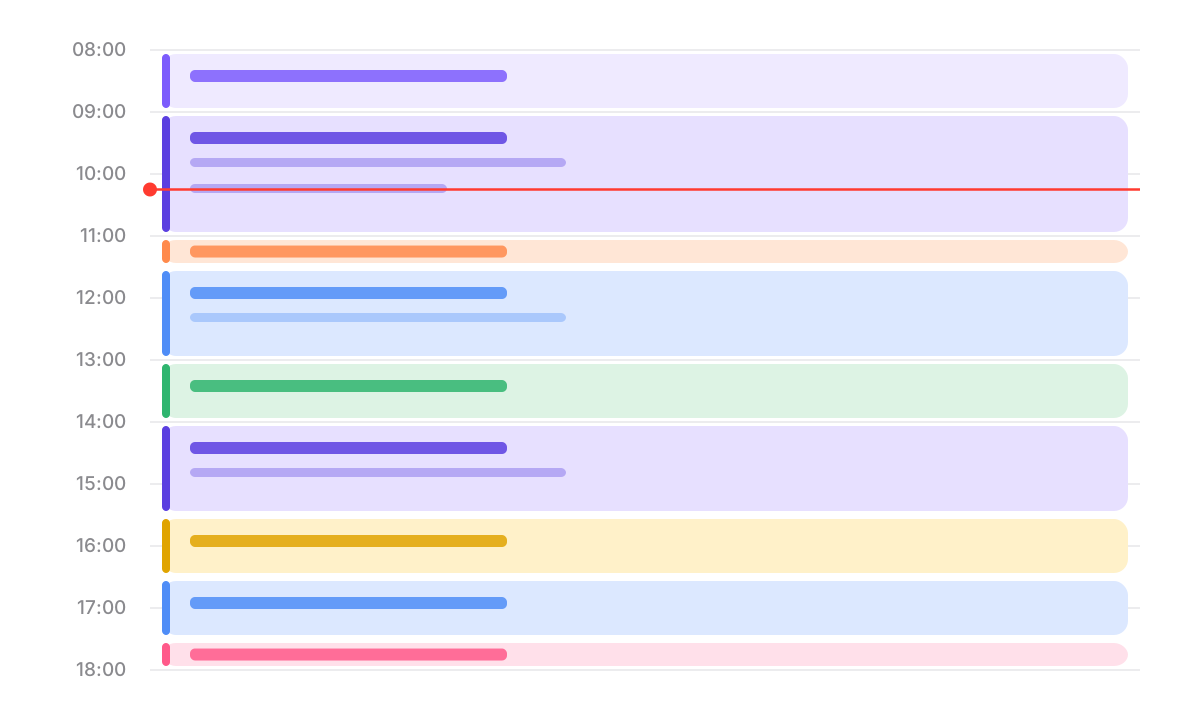
| Time | Block | What I do |
|---|---|---|
| 8:00–8:30 | Morning routine | Coffee, check today's plan, no email yet |
| 8:30–9:00 | Commute | Podcast or audiobook |
| 9:00–11:00 | Deep work | Write the Q4 campaign brief |
| 11:00–11:30 | Admin | Email, Slack, approve invoices |
| 11:30–12:00 | Buffer | Catch up or finish the brief |
| 12:00–13:00 | Lunch | Away from the desk, short walk |
| 13:00–14:00 | Meetings | Weekly team sync |
| 14:00–15:30 | Focused work | Review ad results, prepare report |
| 15:30–16:00 | Admin | Email and messages, round two |
| 16:00–17:00 | Flexible block | Calls, requests, overflow |
| 17:00–17:30 | Shutdown | Review the day, plan tomorrow |
| 17:30–18:00 | Personal | Gym or walk home |
At 10:15 her boss asks for urgent numbers for a client call. Emma doesn't throw the whole plan away. She checks what's at risk, moves the rest of the brief into the 16:00 flexible block, and handles the request in the 11:30 buffer. The day bends, but it doesn't break. That's the point of planning hour by hour: when something changes, you rearrange blocks instead of starting from zero.
Related techniques
- Timeboxing. Very close to time blocking, but with a firmer rule: when the box ends, you stop, even if the task isn't finished. Great for perfectionists.
- Task batching. Grouping similar small tasks into one block, like the admin blocks above.
- Day theming. Giving each day a theme: Monday for planning, Tuesday for client work, Friday for learning. Useful if your role covers very different areas.
You can mix them freely. Many people time block their mornings, batch the afternoons and theme their Fridays.
Common time blocking mistakes
- Planning every minute from day one. Start by blocking just your mornings for a week, then expand.
- No buffers. A schedule packed edge to edge collapses at the first delay.
- Blocks that are too vague. "Work on project" is not a block. "Draft sections 1–3 of the proposal" is.
- Treating the plan as a failure when it changes. Re-blocking is part of the method, not a sign it isn't working.
- Ignoring your energy. Don't put hard thinking in the post-lunch slump.
How to time block your day in Plan4U
Plan4U is a calendar and planner for iPhone, and it fits time blocking well. You can type a plain sentence like "Deep work tomorrow 9–11" and the app turns it into an event, picking up the date and time from the text. Your blocks appear on a day timeline: hold a block and drag it to move it, or drag its bottom edge to stretch it when a task needs longer. If you need to squeeze something in, the "find a free slot" option suggests the next free time in your day, and a push reminder tells you before a block starts. All of that is free.
Premium adds event colors, so you can color-code deep work, meetings, admin and personal time. Recurring blocks, such as a daily email slot or a weekly review, can repeat every day, every week or every N days, and the Home Screen widget shows what's coming next. Premium also brings Apple Calendar sync, light and dark themes, and shared calendars with family or colleagues. The app itself is free to download.
FAQ
How long should a time block be?
For deep work, 60–120 minutes is a good range. For admin and email, 20–30 minutes is usually enough. Shorter than 15 minutes is better handled as part of a batch.
What if I can't stick to my time blocking schedule?
That's normal in the first weeks. Add more buffer time, make blocks smaller, and adjust the plan during the day instead of abandoning it.
Is time blocking good for people with unpredictable jobs?
Yes, with more flexible blocks. Block one or two protected hours and leave larger "reactive" blocks for whatever comes in.
Conclusion
Time blocking isn't about controlling every minute. It's about deciding in advance what your hours are for, so the important work gets a place in your day. Start small: tomorrow, block just your first two hours. Plan it tonight, in a paper notebook or in an app like Plan4U, and see how different the morning feels.